
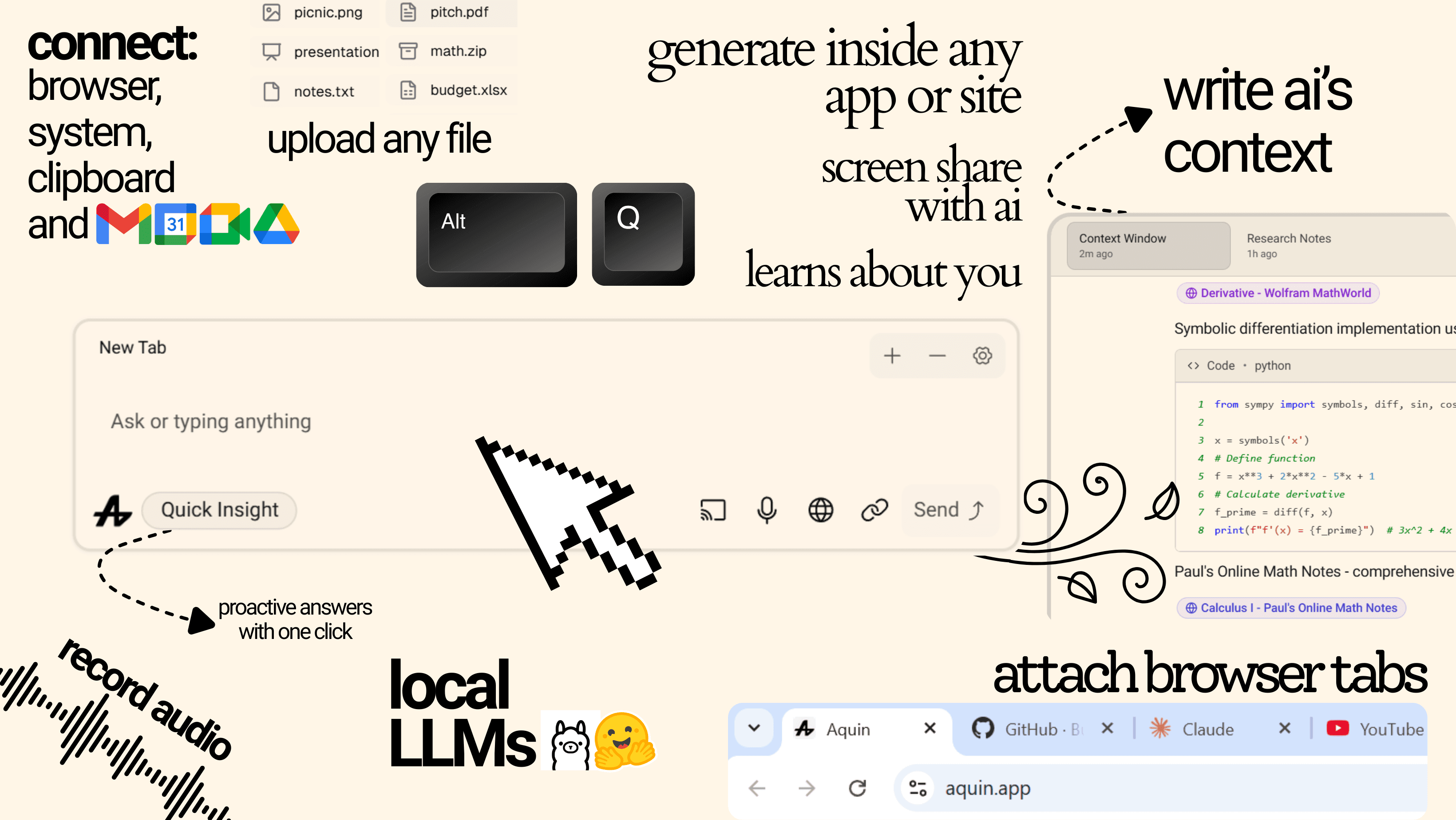
The Floating Assistant Era: Where Aquin Started
Before we dove into what we're building now, there was the Floating Assistant—a project that taught us everything about what users actually need from AI tooling.
What We Built
The Floating Assistant was Aquin's first major push: a desktop productivity tool that floated on top of your workflow, packed with integrations and context-aware AI capabilities. It wasn't just another chatbot or browser extension—it was an always-accessible AI companion that understood what you were working on.
Watch the alpha launch:
Initial introduction: https://www.youtube.com/embed/fpRyM9ZmiHM
More Than Just a Browser
Early on, we realized we weren't building just another browser or tab manager. The Floating Assistant needed to be fundamentally different—something that lived alongside your work without getting in the way.
See the vision: https://www.youtube.com/embed/gzv0WuNlfBU
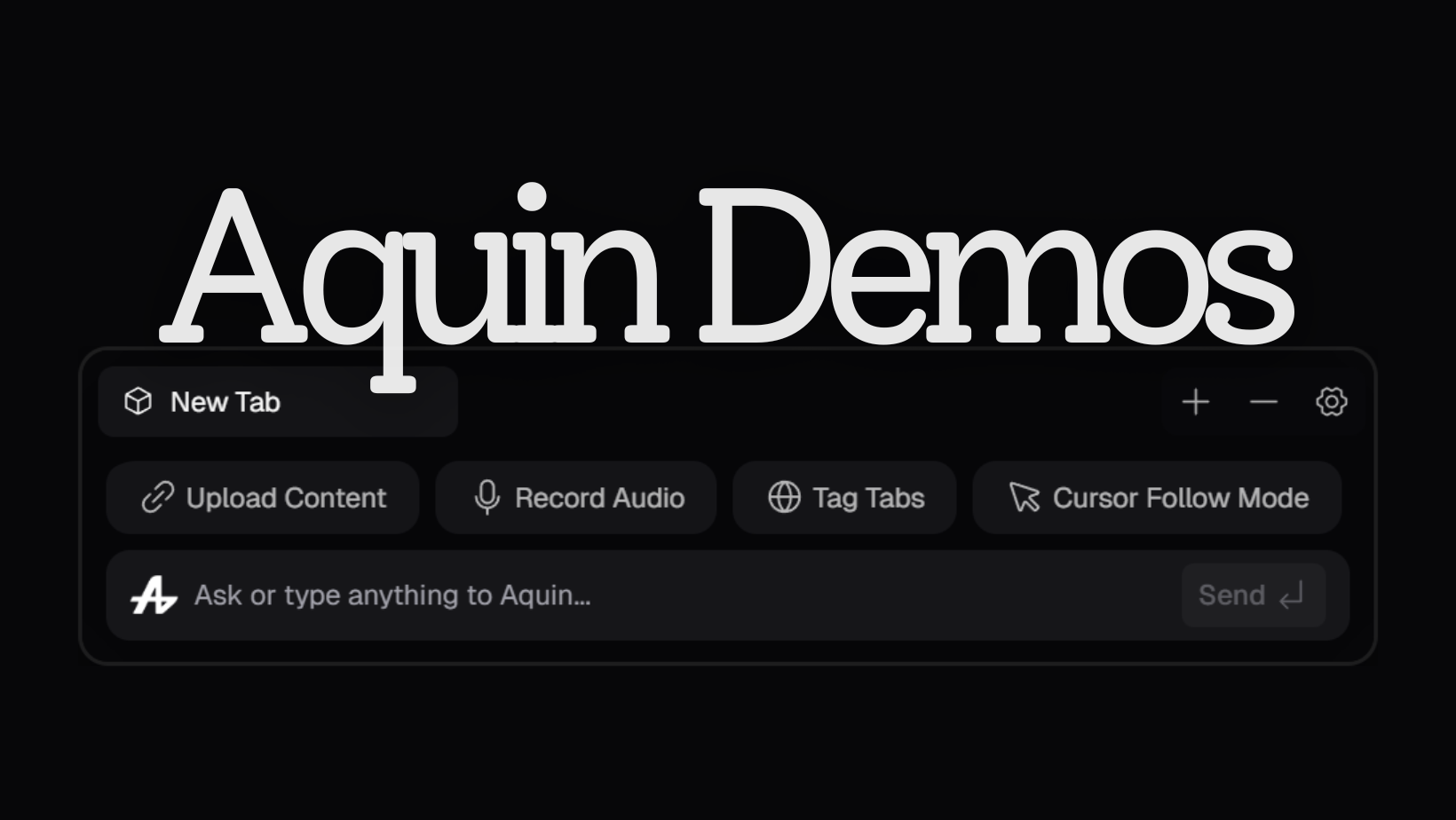
The Full Experience
We built out the complete feature set: context windows, rich integrations, intelligent responses, and a UI that actually made sense.
Complete demo: https://www.youtube.com/embed/zTEDDVO_Dxg
The pitch: https://www.youtube.com/embed/bHt9p3Ugz_E

Feature overview: https://www.youtube.com/embed/GCPeEf5ce6A
Why We Chose Floating Over Sidebars
We almost went with a sidebar. Sketched it out, refined it, seemed logical.
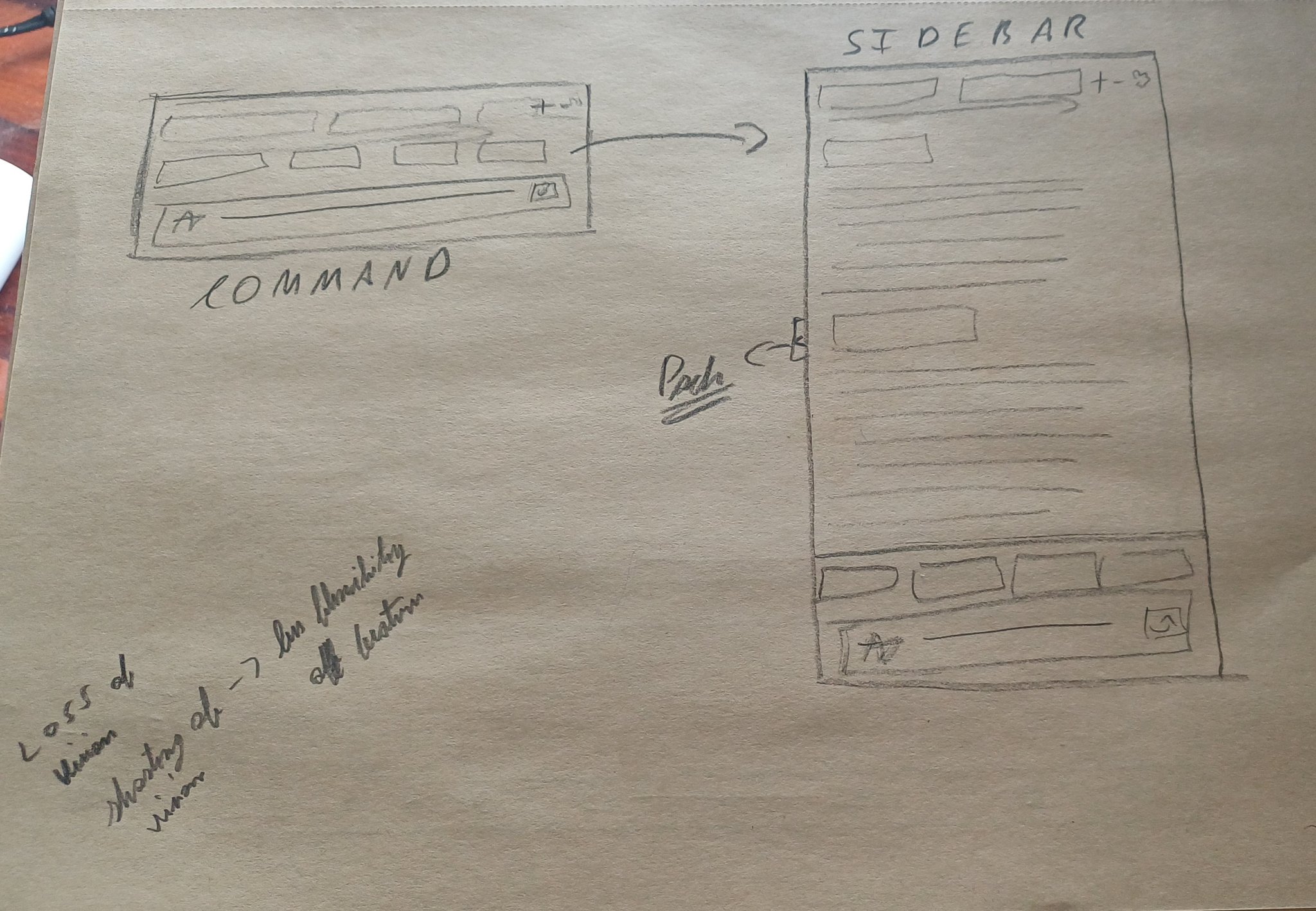
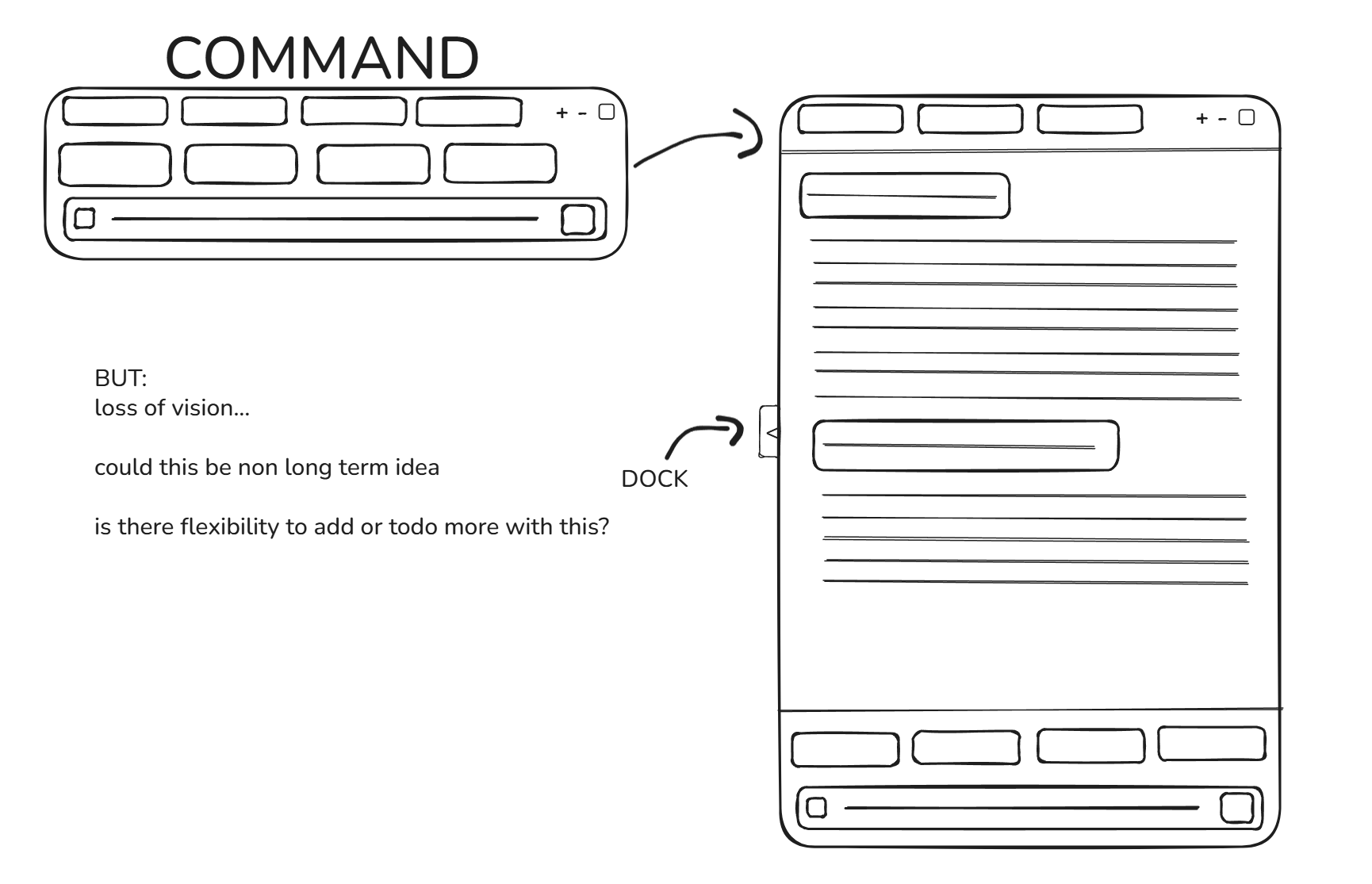
Then we realized sidebars steal screen space, force linear thinking, and create cognitive load. Floating meant spatial freedom—AI appears where your attention is, then vanishes completely.
Sidebars feel like a supervisor. Floating feels like a genius friend who appears exactly when needed.
The Interface That Disappears
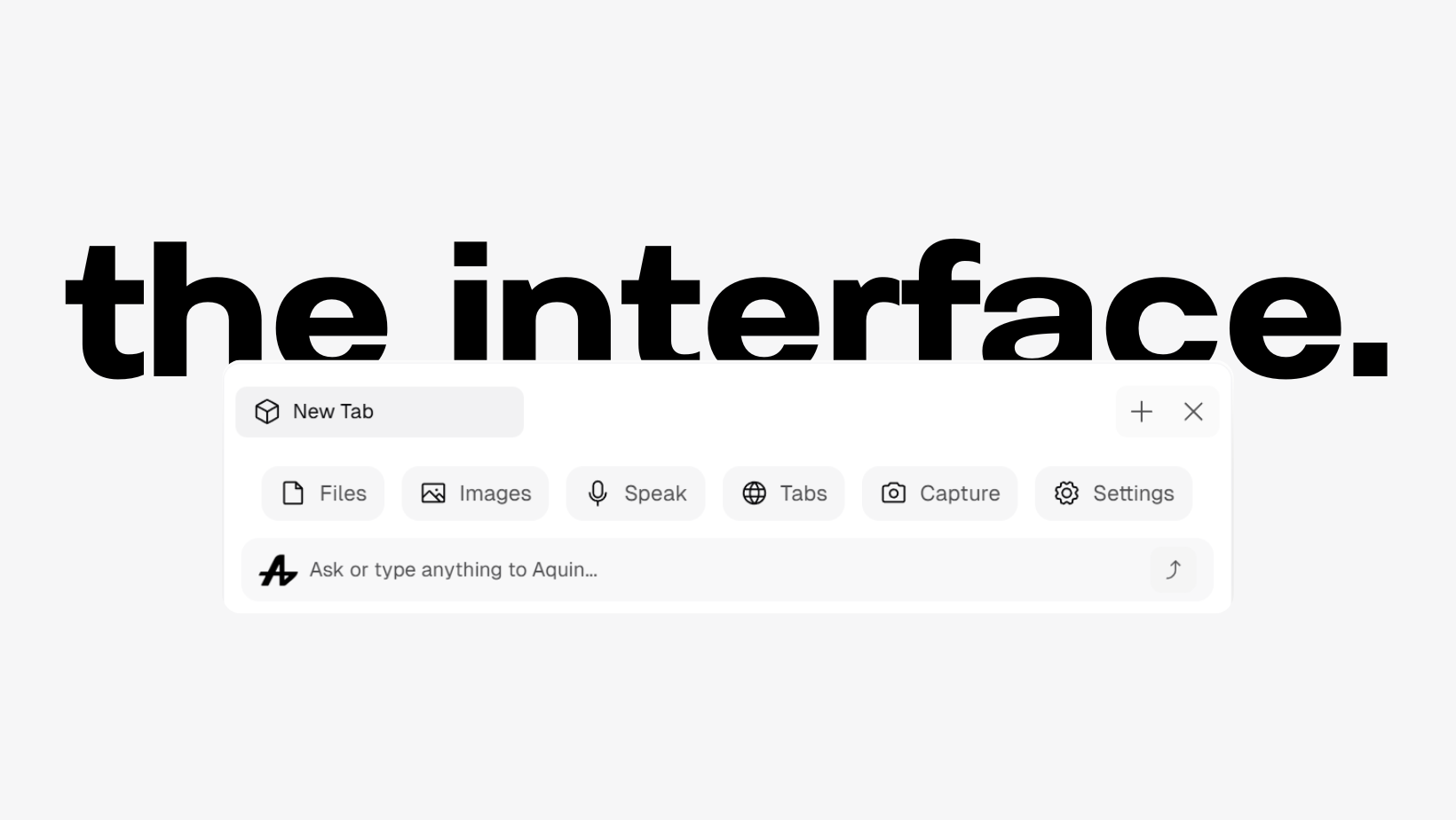
We built a translucent floating interface you could drag anywhere. See through it when you're not using it. Hide it completely with one keyboard shortcut. Same interface everywhere—browser, code editor, games, anything.
Voice: Because Typing Is Too Slow
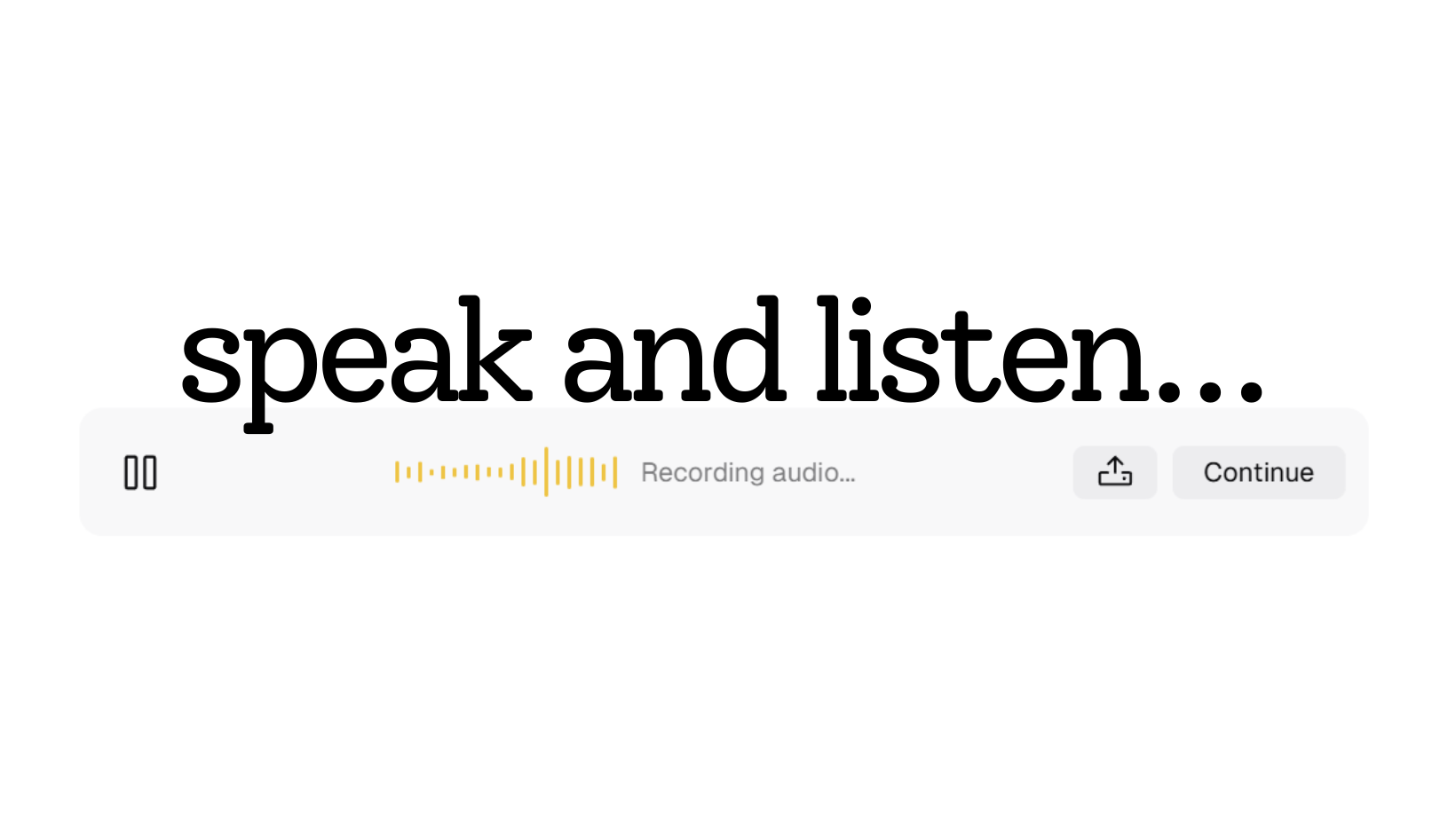
Sometimes your hands are busy. Click the microphone, speak your question, get your answer. Want to hear it instead of reading? Click the speaker. No setup, no training—just click, speak, listen.
Voice Chat: Conversational AI
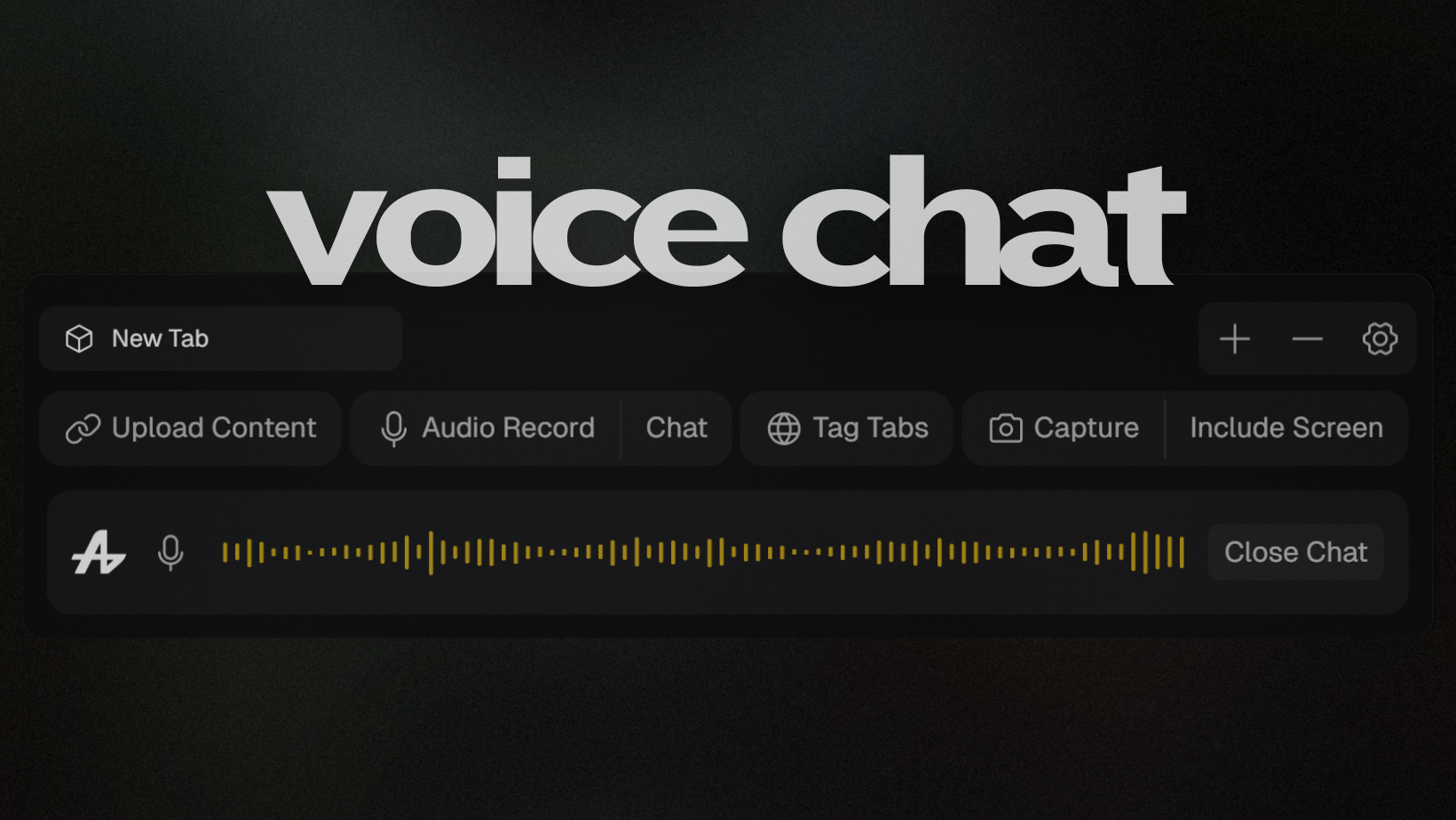
Then we took voice further. Voice Chat transformed the assistant into a conversational partner—flowing dialogue that sparked creativity and problem-solving. Brainstorm algorithms while coding. Discuss design principles while sketching. Continue conversations even when Aquin was hidden, like having JARVIS from Iron Man.
Watch the demo:
No pausing to type. No breaking thought process. Pure, flowing dialogue.
Local AI: Your Data Stays Yours
Every AI tool sends your data somewhere else. We built local AI—download models directly to your computer, run them entirely on your machine. No internet required. No data sent anywhere.
Hugging Face & Ollama Integration
We pushed local AI even further. Download any Hugging Face model directly in Aquin. Run it locally. Complete privacy, no API costs, no rate limits.

Already running Ollama? Connect it to Aquin. Use your existing models with Aquin's interface—floating assistant, cursor follow, all the features.
Watch the tutorial:
https://www.youtube.com/embed/sGsjcGtWgP8
Ollama for local model management. Aquin for beautiful UI and advanced features. Together: perfect local AI setup.
Custom Commands: @, /,
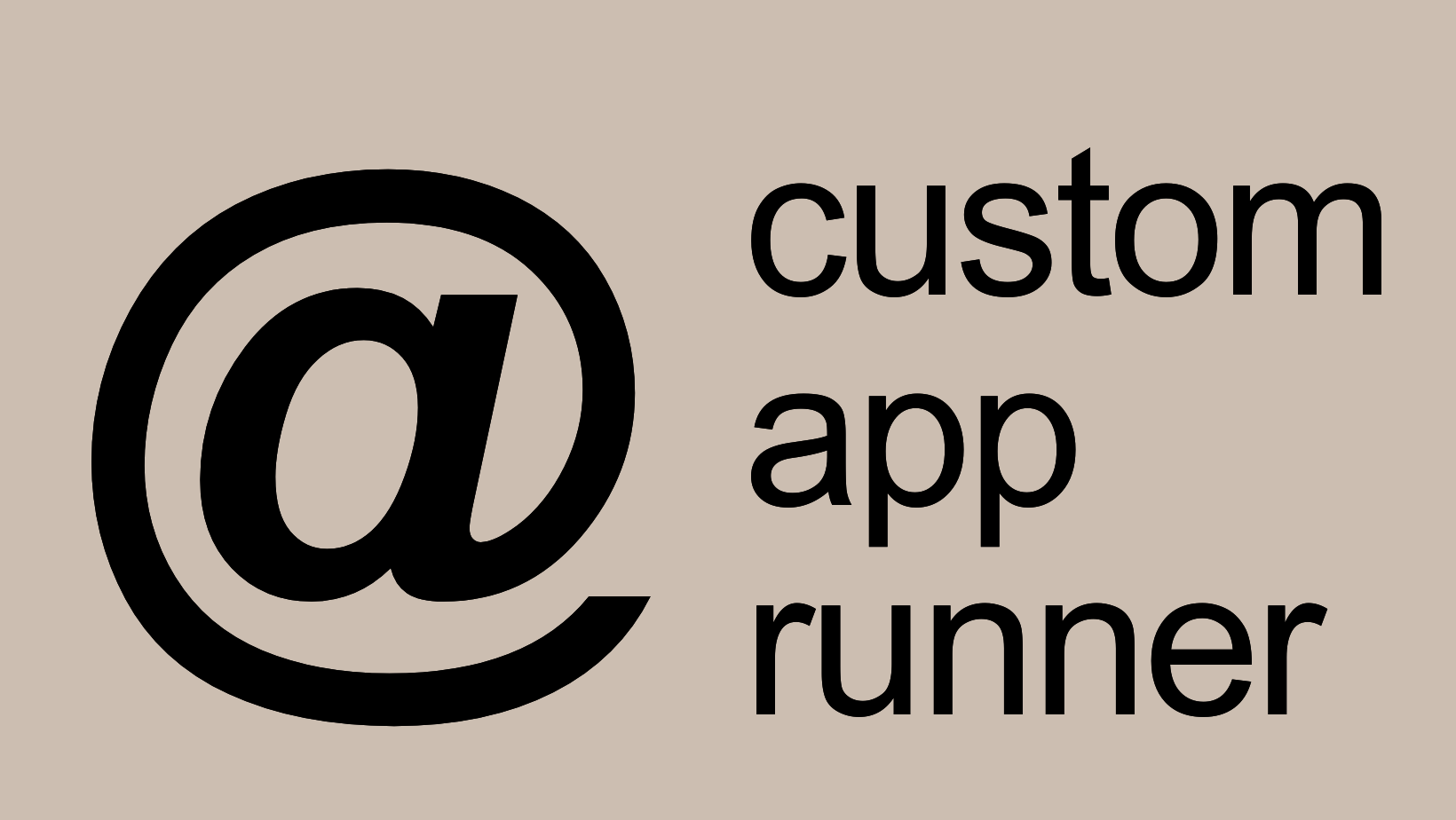
@ for apps. Photoshop? @ps. VS Code? @code. Any application, one command away.
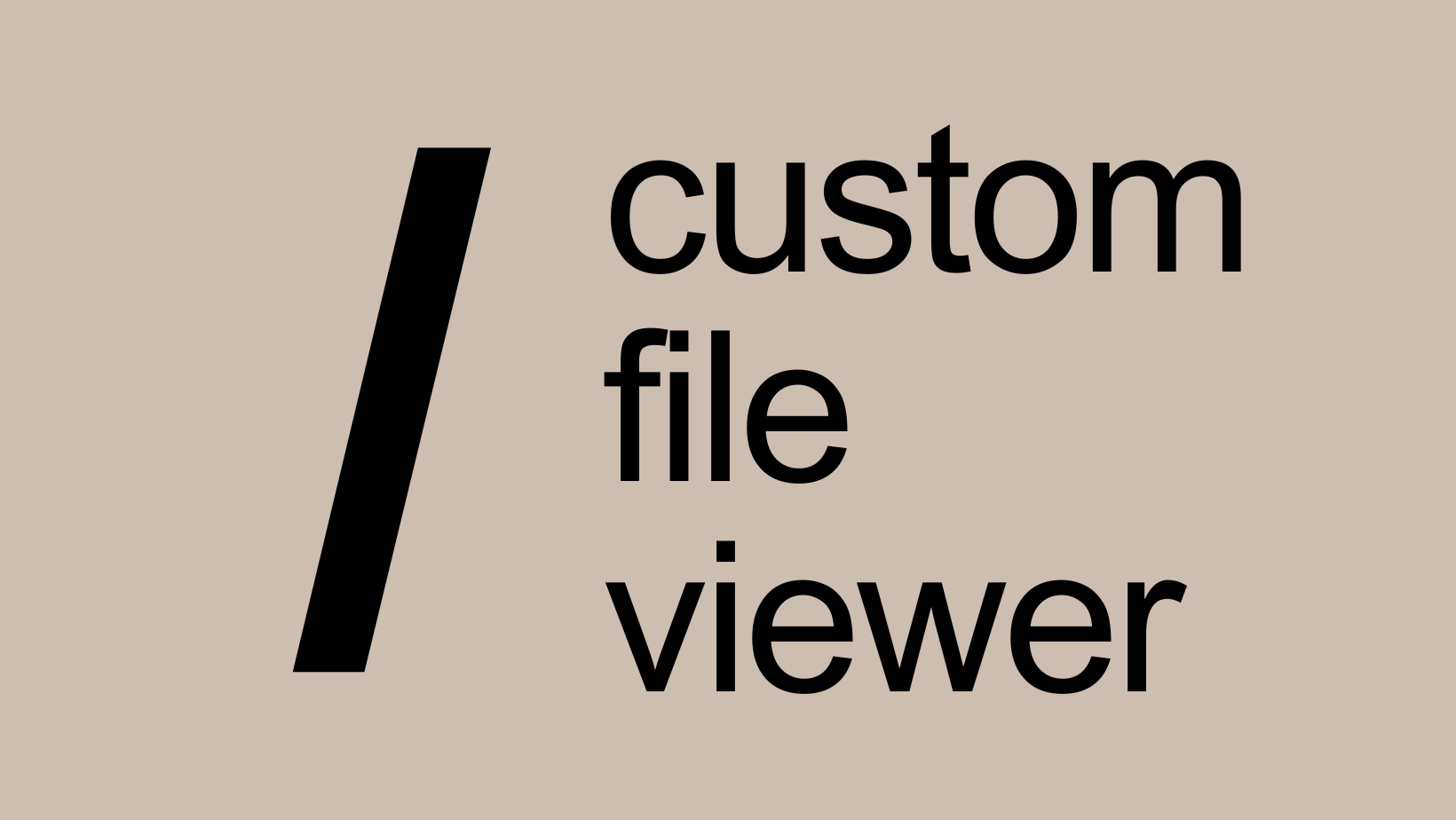
/ for files. Important document buried five folders deep? /resume. Config file? /config. Instant access.
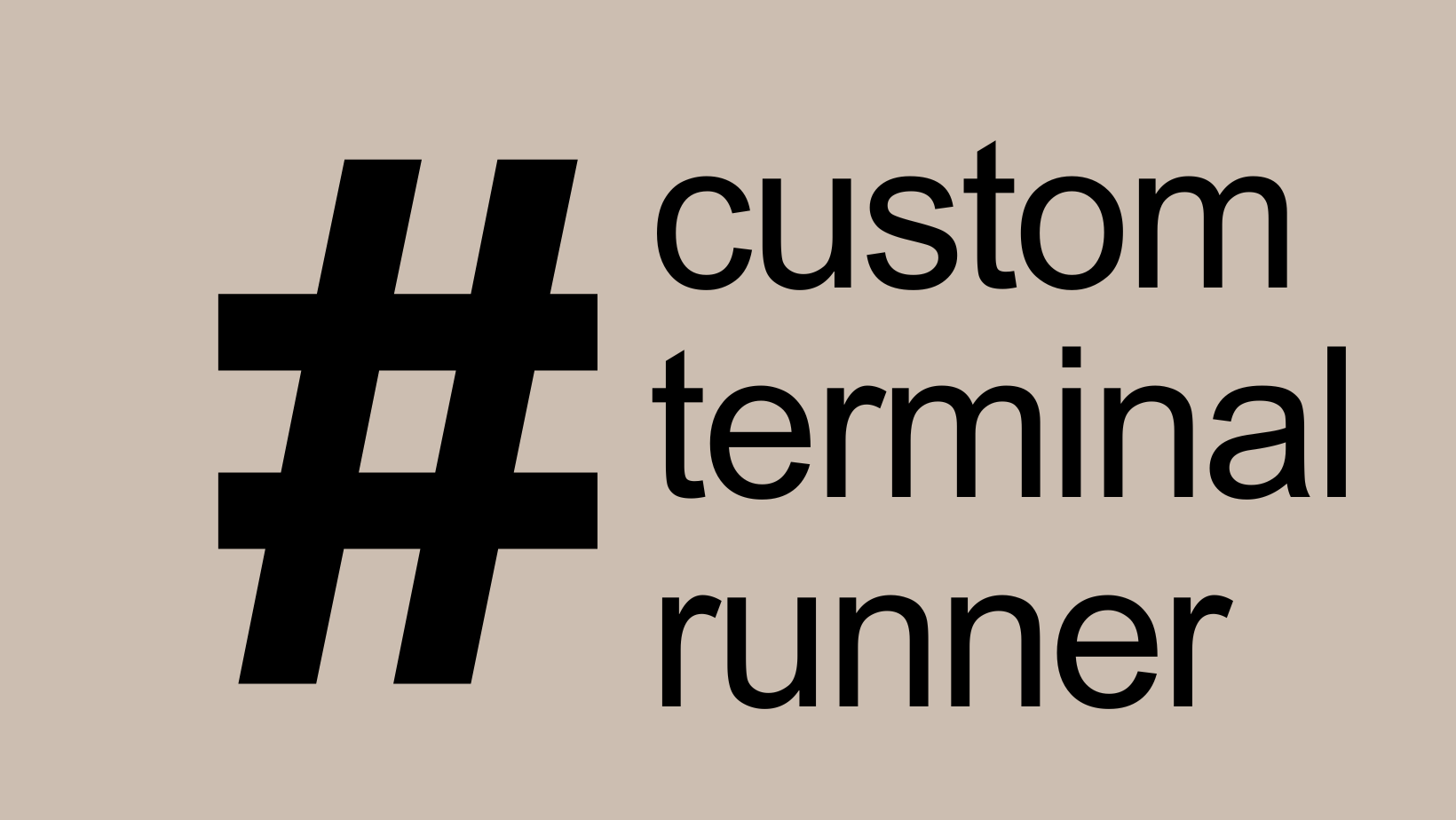
# for terminal commands. Start dev server? #dev. Build script? #build. Execute any command without opening a terminal.
Three symbols. Infinite shortcuts. Your entire computer accessible from one floating box.
Upload Anything
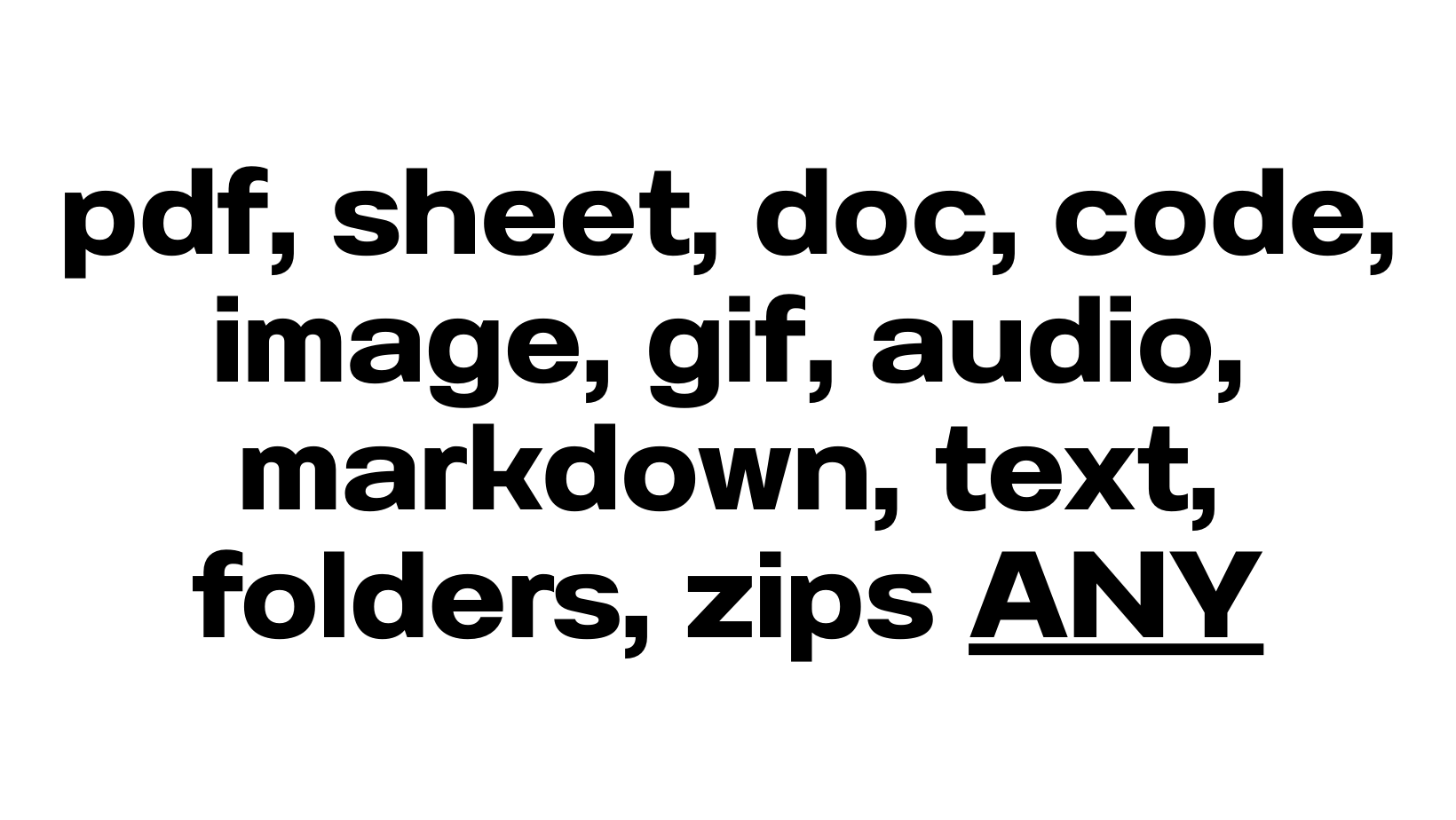
Most AI tools accept images and PDFs, reject everything else. We built universal file upload—drag any file type into Aquin. PDFs, spreadsheets, code, images, audio, folders, zips, anything.
Connect Your Browser
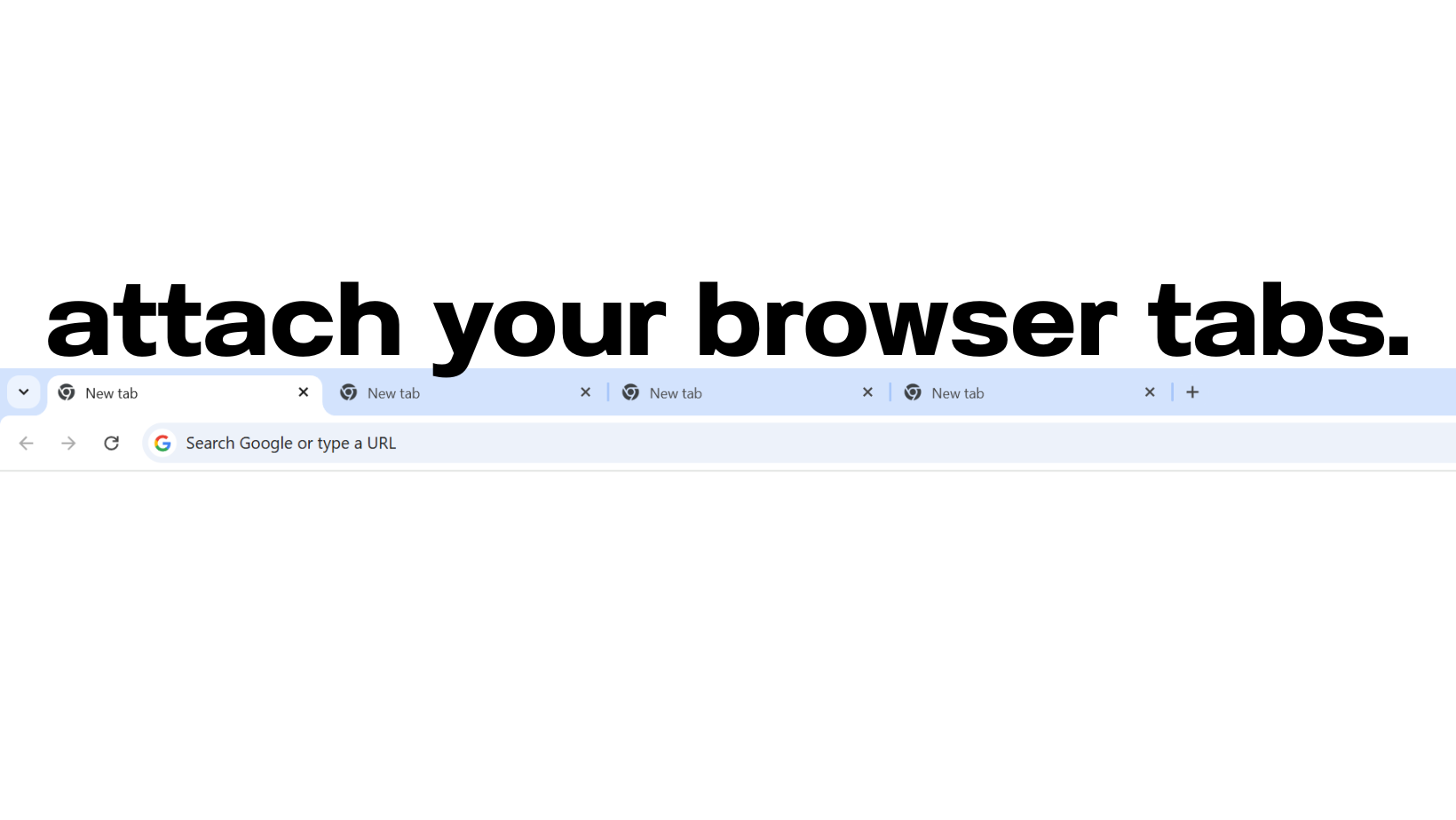
Stop copying and pasting from websites. Click "Tabs" to see your opened browser tabs, select one, and AI reads the actual content. Attach multiple tabs for research, comparisons, learning.
Include Screen: Screen Share with AI
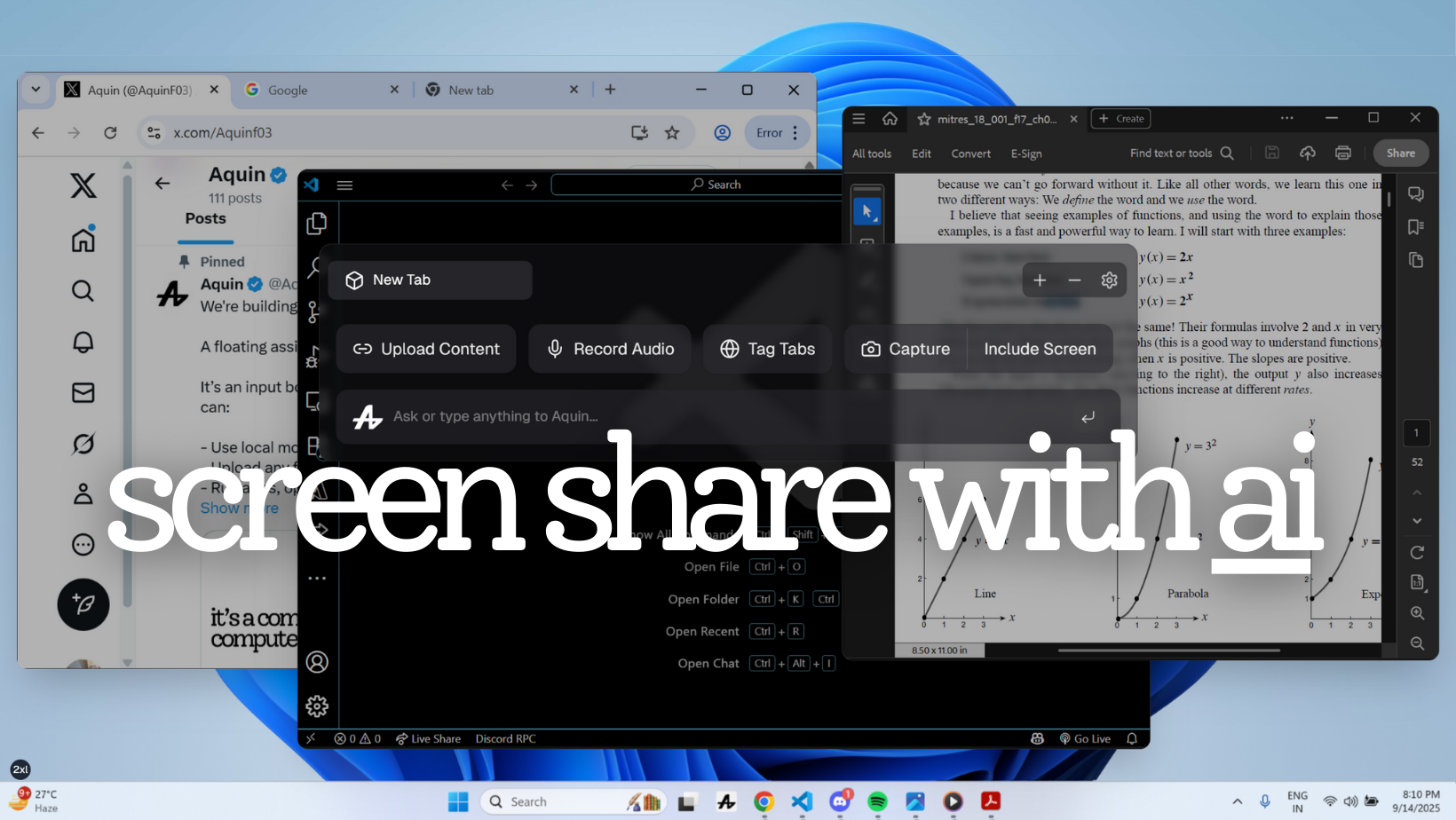
Turn on Include Screen once—Aquin automatically captures your workspace before every response. Just ask "What's wrong with this code?" and AI instantly sees your IDE.
Watch the demo:
https://www.youtube.com/embed/Ybzrtn61svM
Quick Insight: Get Answers Before Asking
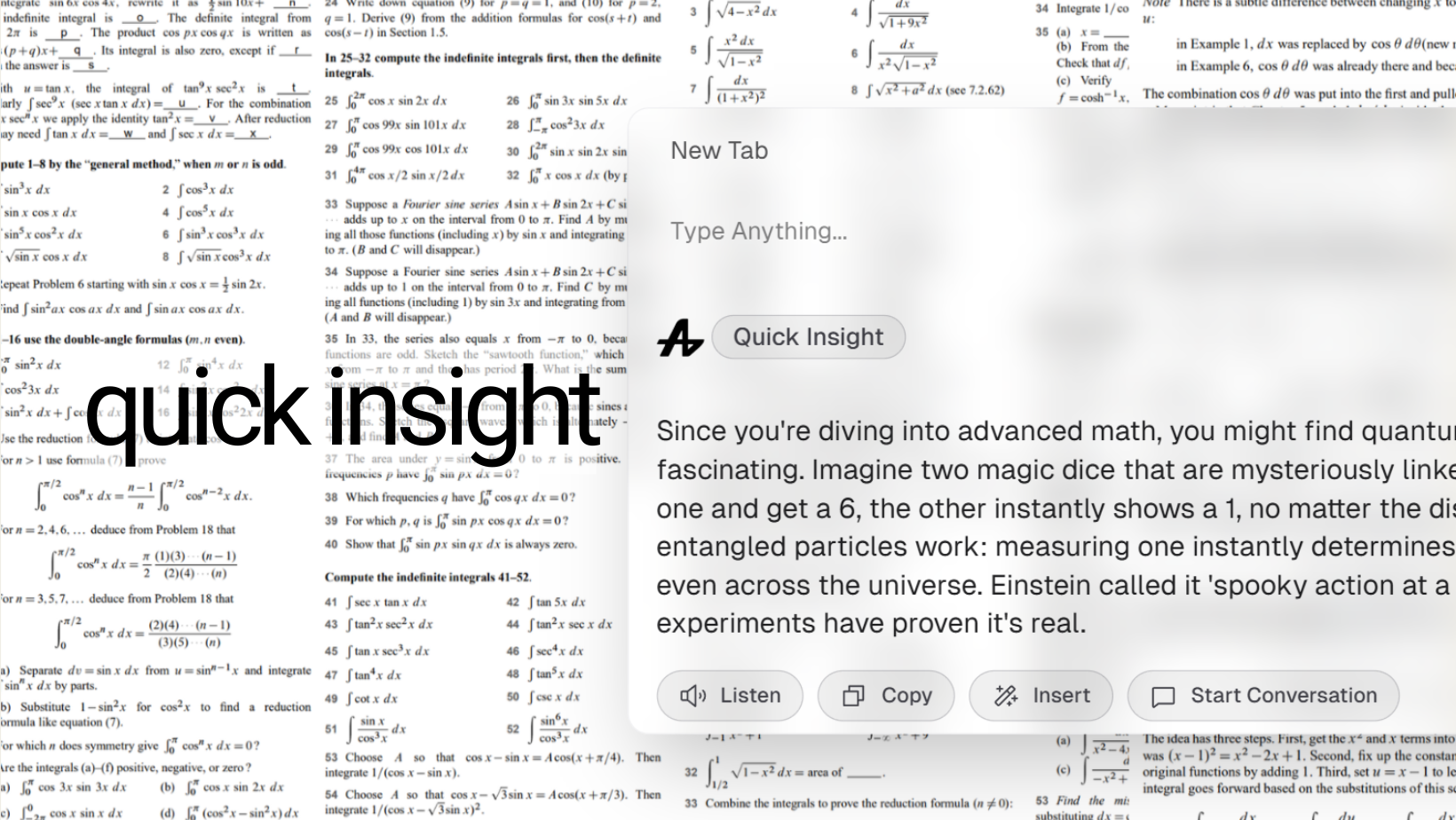
Sometimes you don't even need to ask. Quick Insight was a single button—one click, and AI analyzed your screen, understood what you were working on, and proactively delivered relevant insights.
Watch the demo:
Analyzing data? Quick Insight spotted trends and anomalies. Reviewing code? It identified bugs and optimizations. Writing? It suggested structural improvements. No explanation needed—AI just saw what you needed.
Cursor Follow: AI That Follows You

Cursor Follow made Aquin shrink into a small input that literally followed your mouse across your entire screen. It saw what you were looking at in real-time and typed responses directly into ANY input field or application.
Watch the demo:
Cursor hovering over error message? "What's causing this?" Aquin types the explanation directly into your code comment.
Insertion & Smart Insertion
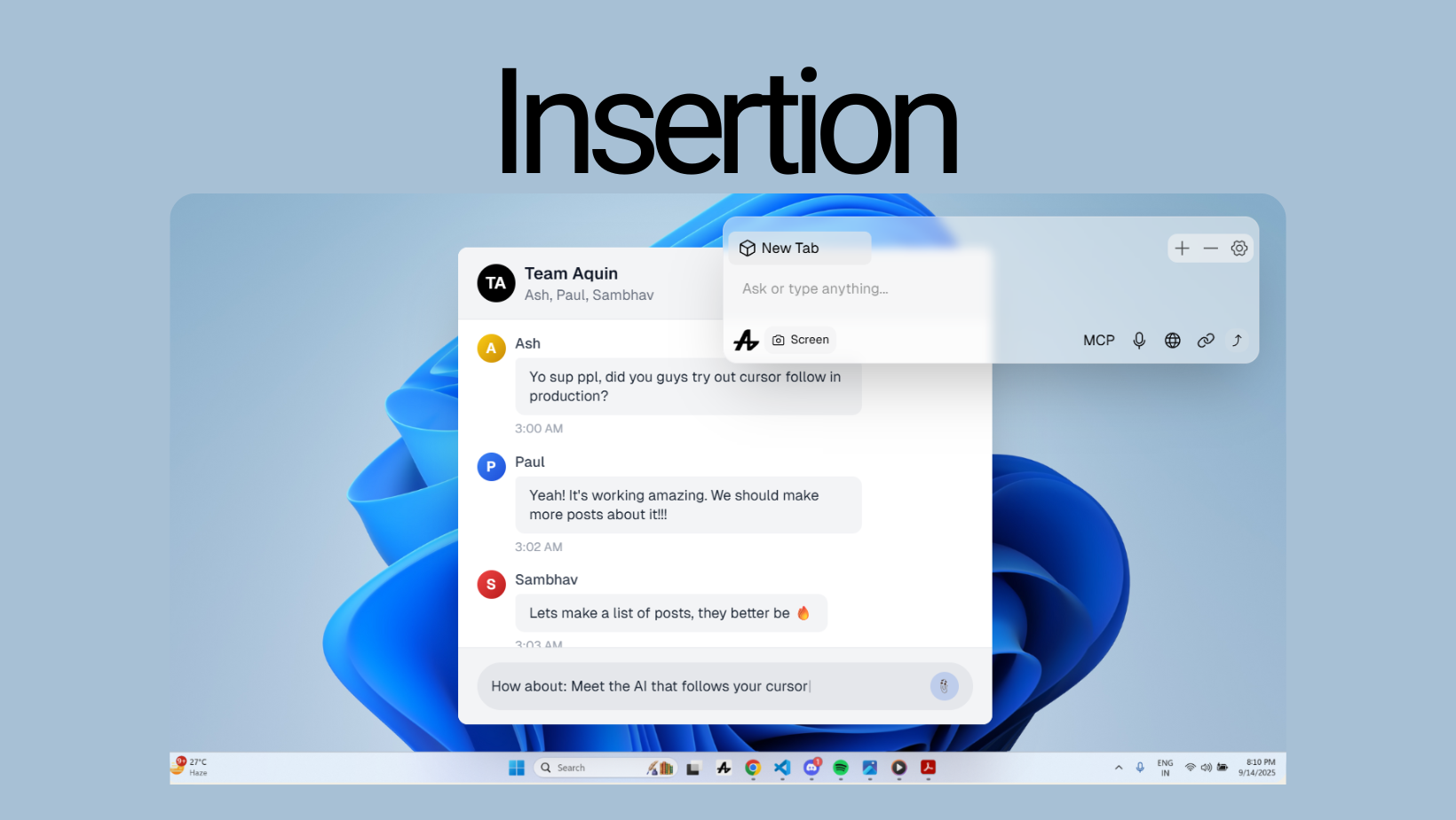
Ask Aquin anything, get the answer, click Insert. Text appears exactly where you need it—Gmail, Slack, VS Code, Twitter, any input field anywhere. Manual Mode or Auto Mode, your choice.

Then we made it smarter. Smart Insertion analyzes where you're inserting, understands the context, and adapts the content to match your tone, style, and voice. AI responses that actually sound like you wrote them.
Watch the demo:
Personalized Learnings: AI That Knows You
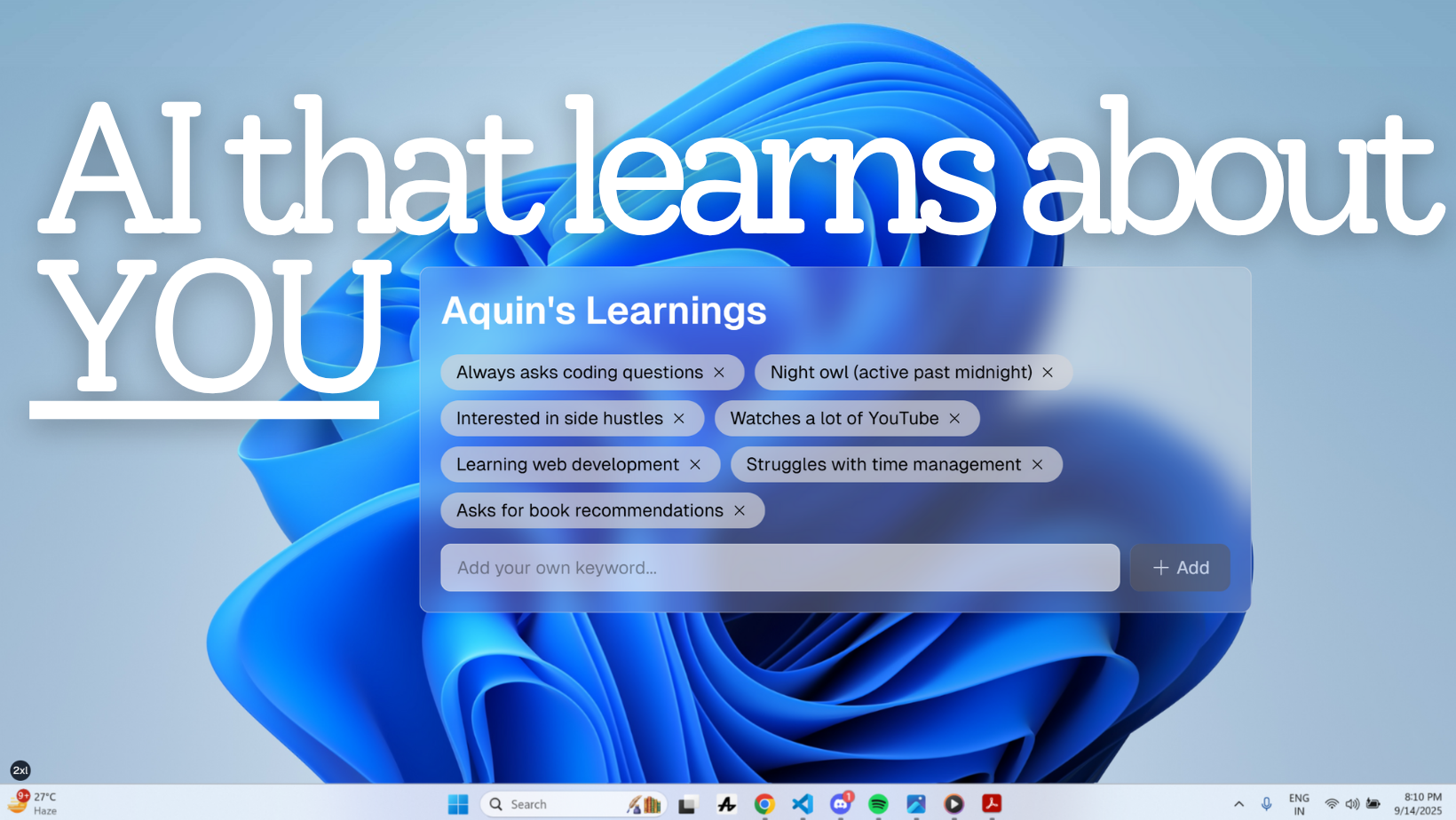
Personalized Learnings made Aquin remember your expertise, preferences, projects, and goals. Every conversation taught the AI more about you.
Watch the demo:
"I'm a React developer" once. Never again.
Context Windows: Write AI's Context Yourself
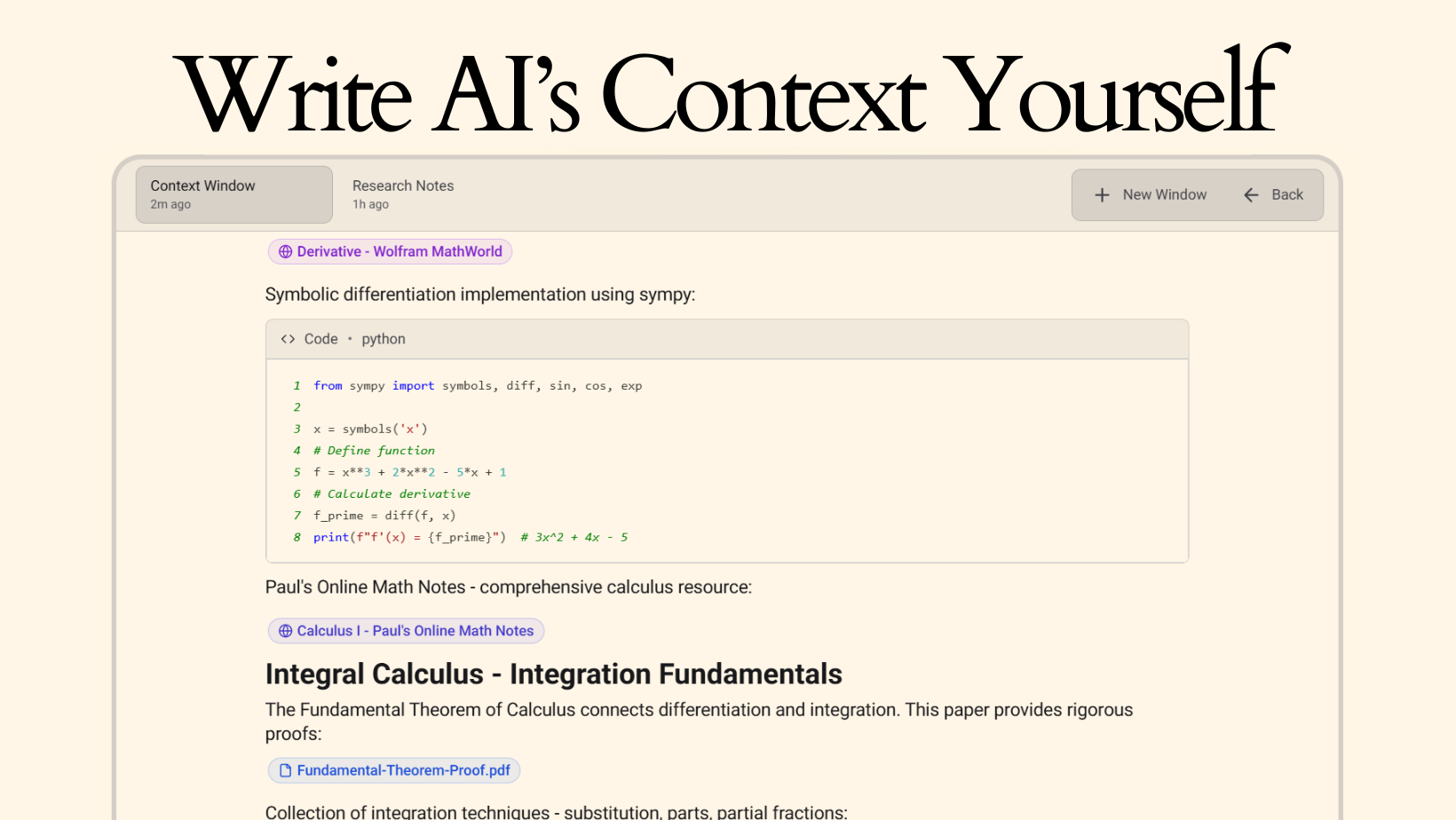
Then we built something massive. Context Windows let you create comprehensive, persistent knowledge bases—10,000+ word documents combining text, files, media, code, YouTube transcripts, web scrapes, everything. Build once, reference across unlimited conversations.
Watch the demo:
Research projects with 15 uploaded papers and 30 scraped articles. Software projects with complete architecture docs and codebase files. Learning curricula with 100+ hours of tutorial transcripts. Feed AI sidebar let you toggle which parts AI could see for each conversation.
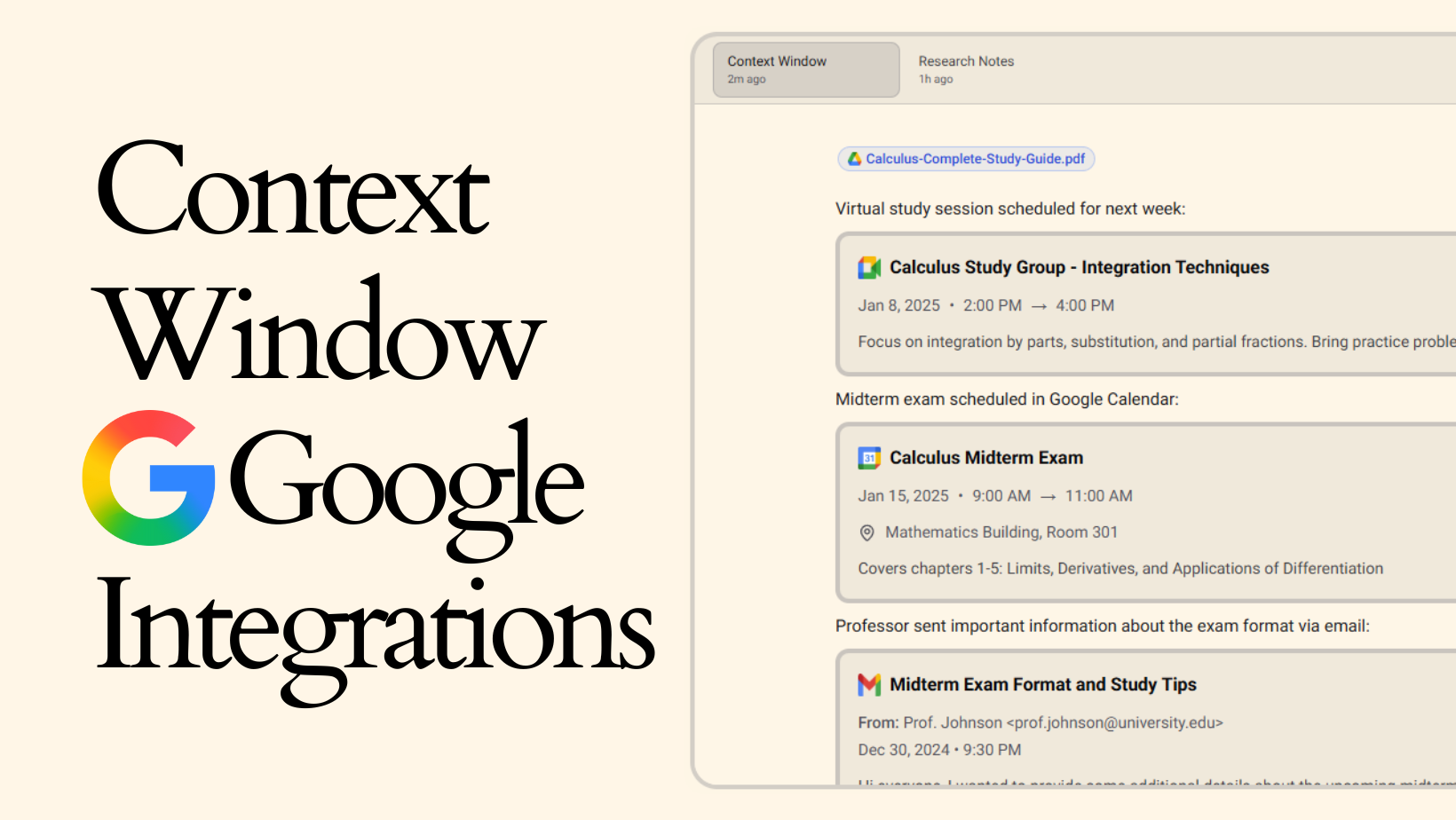
We integrated Google services directly—import Drive files, meetings, calendar events, and emails into Context Windows. Always up-to-date project context without manual copying.
https://www.youtube.com/embed/W80y36PxTpU
Instructed Automation: Command Your Computer
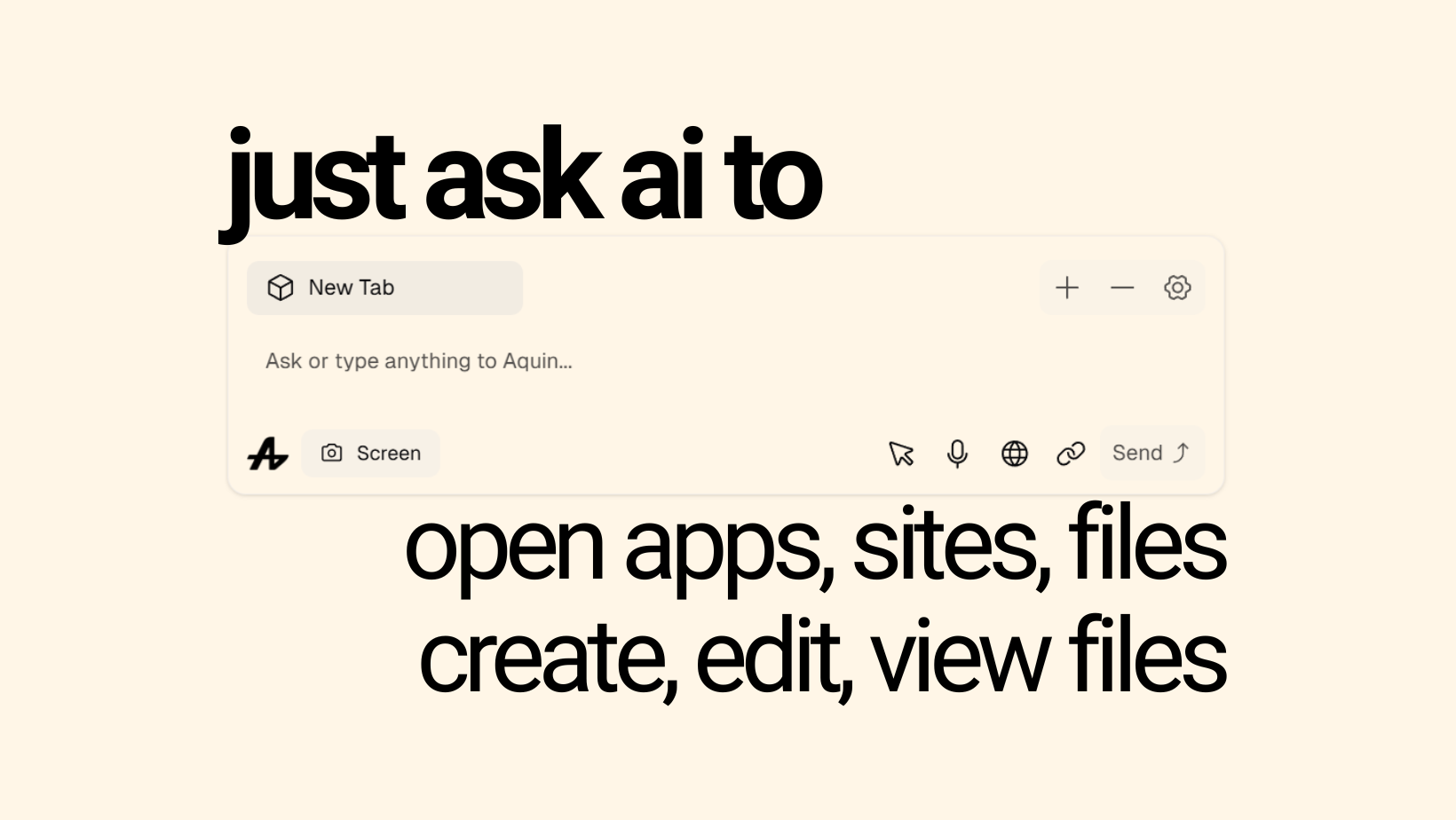
Command your computer through natural language while maintaining complete control. Open websites, launch apps, create files, manage your file system—all in the background.
Watch the demo:
"Open GitHub, Stack Overflow, and my project docs" and Aquin opens all three without disrupting your workflow. No takeovers. Just helpful automation built on Model Context Protocol.
MCP Integrations: Memory Systems
We built memory systems that made AI truly contextual.
Browser MCP: AI That Knows Where You've Been
"Find that article I read last week" finally worked. Aquin could search your entire browser history.
Watch the demo:
Clipboard MCP: AI That Remembers What You Copied
Clipboard MCP gave Aquin access to your clipboard history—every text snippet, every link, every screenshot. It even understood what was IN screenshots.
Watch the demo:
Google Drive MCP: Your Files, Your AI
Import files from Google Drive directly into Aquin. Full MCP mode gave instant access to all imported content. Manual mode let you select specific files to attach.
Watch the demo:
https://www.youtube.com/embed/QPIpdEQCHh8
"Summarize my Q4 planning doc." AI found it, read it, summarized it.
Google Calendar MCP: Manage Your Schedule
"Add dentist appointment next Tuesday at 3pm." Done. Create events, edit, reschedule, cancel, check your schedule—all through natural conversation.
Google Meet MCP: Manage Meetings
"Schedule a team standup for tomorrow at 10am with Sarah, Mike, and Tom." Done. Meeting created, invites sent, Meet link ready.
Gmail MCP: Your Inbox Through Conversation
Gmail MCP transformed email into conversation. Send, search, read, and delete emails through natural language. "Find that email about the budget proposal from last month" found it instantly. "Delete all promotional emails from last month" cleaned your inbox in seconds.
MCP Quick Actions & Yes/No Control
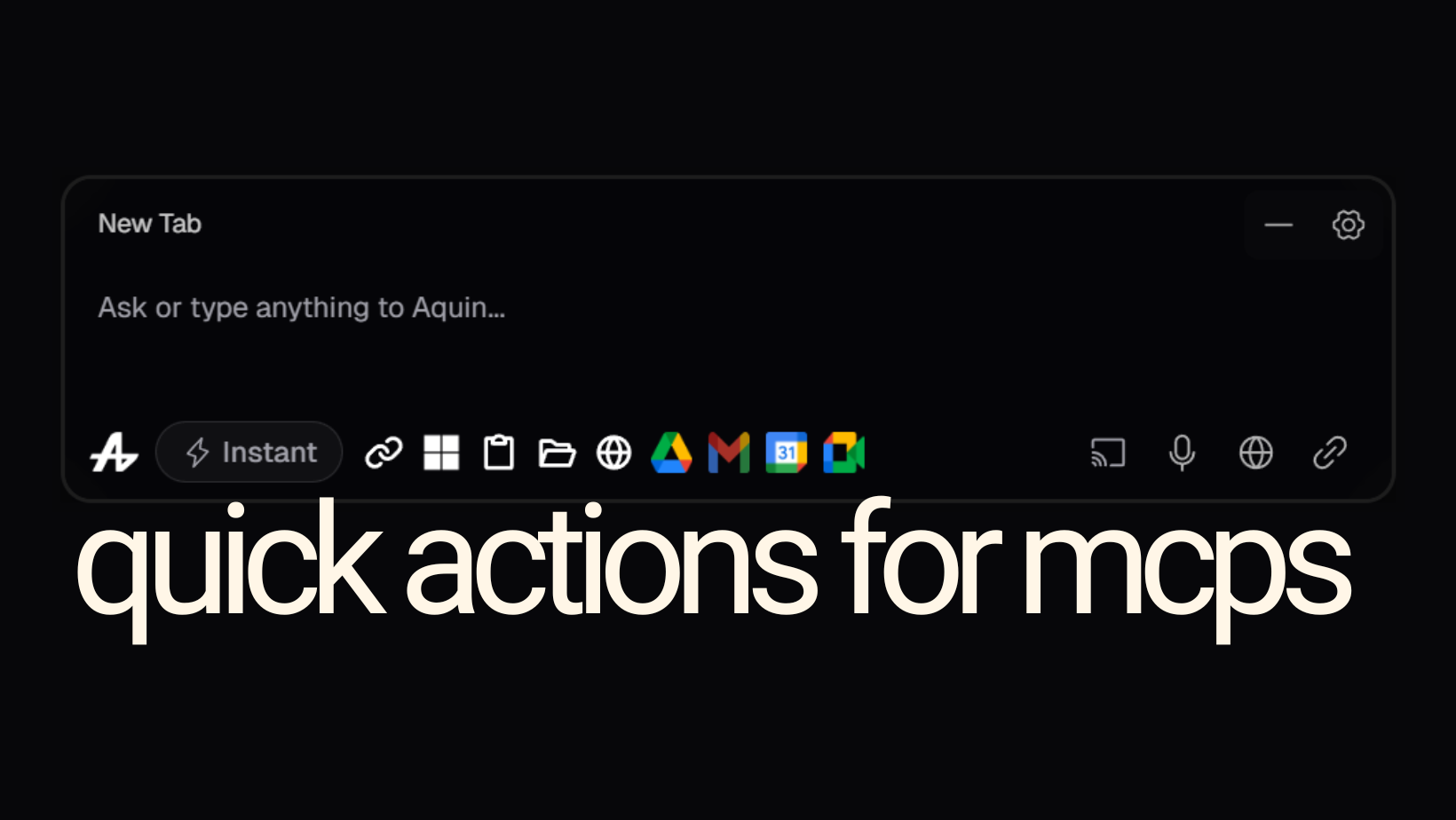
Quick Actions made every MCP integration instantly toggleable from the floating assistant. Active MCPs glow in full color. Inactive MCPs appear dimmed. One click to enable, one click to disable.
Watch the demo:

But power should require permission. Yes/No Setting added a permission step before any MCP action. "This requires Google Drive access. Allow?" Maximum control, maximum awareness.
Watch the demo:
Organized Conversations
Multiple chats kept work separate from personal queries. "Web Project" for development. "Design Ideas" for creative work. Switch between contexts instantly.
Visual Thinking
Mindmap generation turned complex explanations into visual diagrams showing how concepts connect.
Chart generation turned quarterly revenue into line graphs, channel comparisons into bar charts, budgets into pie charts.
Polish & Settings
We even handled the small things. Alt+Tab Hide setting let you choose whether Aquin appeared in your window switcher or stayed hidden. Toggle in Dashboard → Profile.

Complete onboarding tutorial: https://www.youtube.com/embed/-F5sz2rivfk
Beta Launch
Watch the beta launch:
What We Learned
The Floating Assistant hit 20K+ users in beta. People loved everything—the interface that disappeared, the privacy-first local AI, the custom commands, the voice chat, the cursor that followed them, the Quick Insight that answered before they asked, the AI that remembered them, the Context Windows that let them build massive knowledge bases, the automation that didn't hijack their screen, the memory systems that persisted context across browser history, clipboard, and cloud storage, the smart insertion that matched their voice, the permission-based controls that kept them in charge.
But it also showed us where the real opportunity was—something bigger than floating windows and shortcuts. Something that went beyond being an assistant.
That's what we're building now.
The Floating Assistant was our foundation. What comes next is something entirely different.