
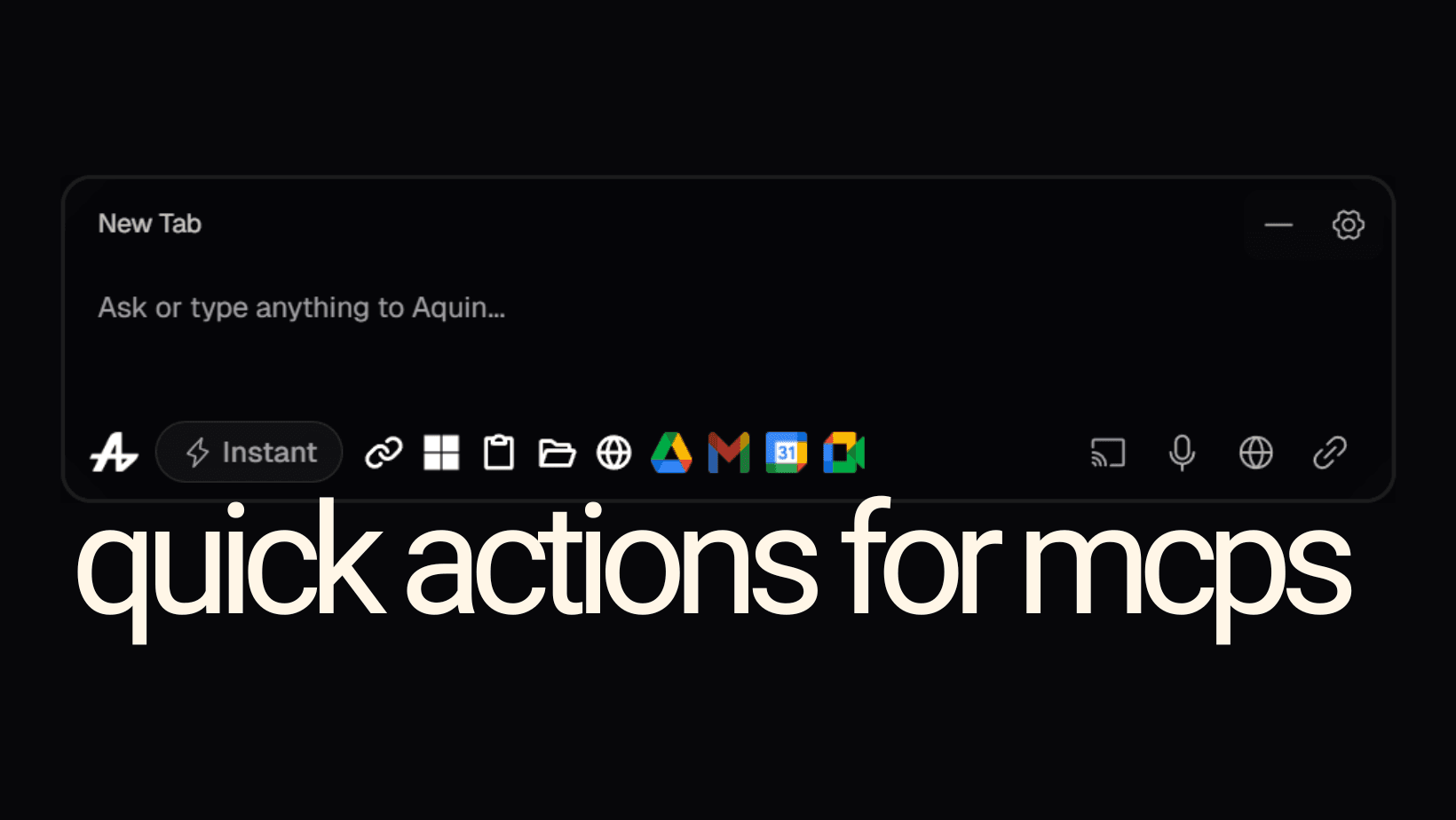
MCP Quick Actions
"Quick Actions for MCPs" Watch on YouTube →
"Quick Actions for MCPs" Watch on X →
What if MCP control was always one click away?
Quick Actions for MCPs transforms management of Connected MCPs from a settings task into an instant toggle. Every MCP integration can appear as an icon directly on the Aquin's floating assistant. One click enables. One click disables. No menus. No navigation. Just instant control.
The floating assistant becomes your MCP control panel, with each integration represented by its recognizable icon. Active MCPs show in full color. Inactive MCPs appear dimmed. Your integration state is always visible, and changing it is always immediate.
MCPs to use Quick Actions for:
-
URL Opener
-
App Launcher
-
Clipboard
-
File System
-
Browser History
-
Google Drive
-
Google Meet
-
Google Calendar
-
Gmail
Quick Actions for MCPs
The philosophy behind Quick Actions is simple: powerful features should be as easy to disable as they are to enable.
Different tasks require different capabilities. When you're doing deep research, browser history access is valuable. When you're presenting to a client, you might want it off. When you're managing your inbox, Gmail MCP is essential. When you're coding, it's irrelevant. Quick Actions let you match your MCP state to your current context instantly.
Seeing which MCPs are active removes uncertainty. You don't wonder "did I enable clipboard access?" or "is Gmail MCP still on?" You know, because the icons show you. This visual feedback creates confidence—you understand exactly what Aquin can and cannot access at any moment.
The best privacy controls are the ones people actually use. When toggling MCPs requires opening settings, people don't do it. They either leave everything on (reducing privacy) or everything off (reducing functionality). Quick Actions makes privacy control effortless, which means it actually happens.
Quick Actions live where you work, on the floating assistant. You don't leave your application to manage integrations. You don't interrupt your flow to enable a feature. The controls exist in your workspace, ready when you need them, invisible when you don't.
The Quick Actions interface is designed for speed and clarity. Icons appear at the bottom left side of Aquin's floating window, depending on your layout preferences. Each icon is immediately recognizable.
Active MCPs glow in full color, indicating they're ready to use. Inactive MCPs appear in muted gray, showing they're available but not currently enabled. Hover over any icon to see its name(hover tooltip will be visible) and current state. Click once to toggle.
- Working on a document
- Need to reference an old email
- You: Click Gmail icon - it lights up
- You: "Find the email about the Henderson contract"
- Aquin: Accesses Gmail, finds message
- Done with email
- You: Click Gmail icon again - it dims
- Gmail MCP disabled
The transition is instantaneous. No loading screens, no confirmation dialogs, no interruption to your work. The MCP is simply on or off, and you controlled it without breaking focus.
The Picture
As AI capabilities expand, user control must remain central. Features become more powerful, but power without control creates anxiety, not productivity. Quick Actions shows how to give users both capabilities that can do extraordinary things, paired with effortless mechanisms to constrain those capabilities.
This matters increasingly as AI integrates deeper into our workflows. We need convenient access to powerful features, but we also need convenient access to limiting those features. Quick Actions proves these aren't opposing goals they're complementary parts of good design.
Every MCP offers extraordinary capabilities. Quick Actions ensures you control those capabilities with the same ease you access them.