
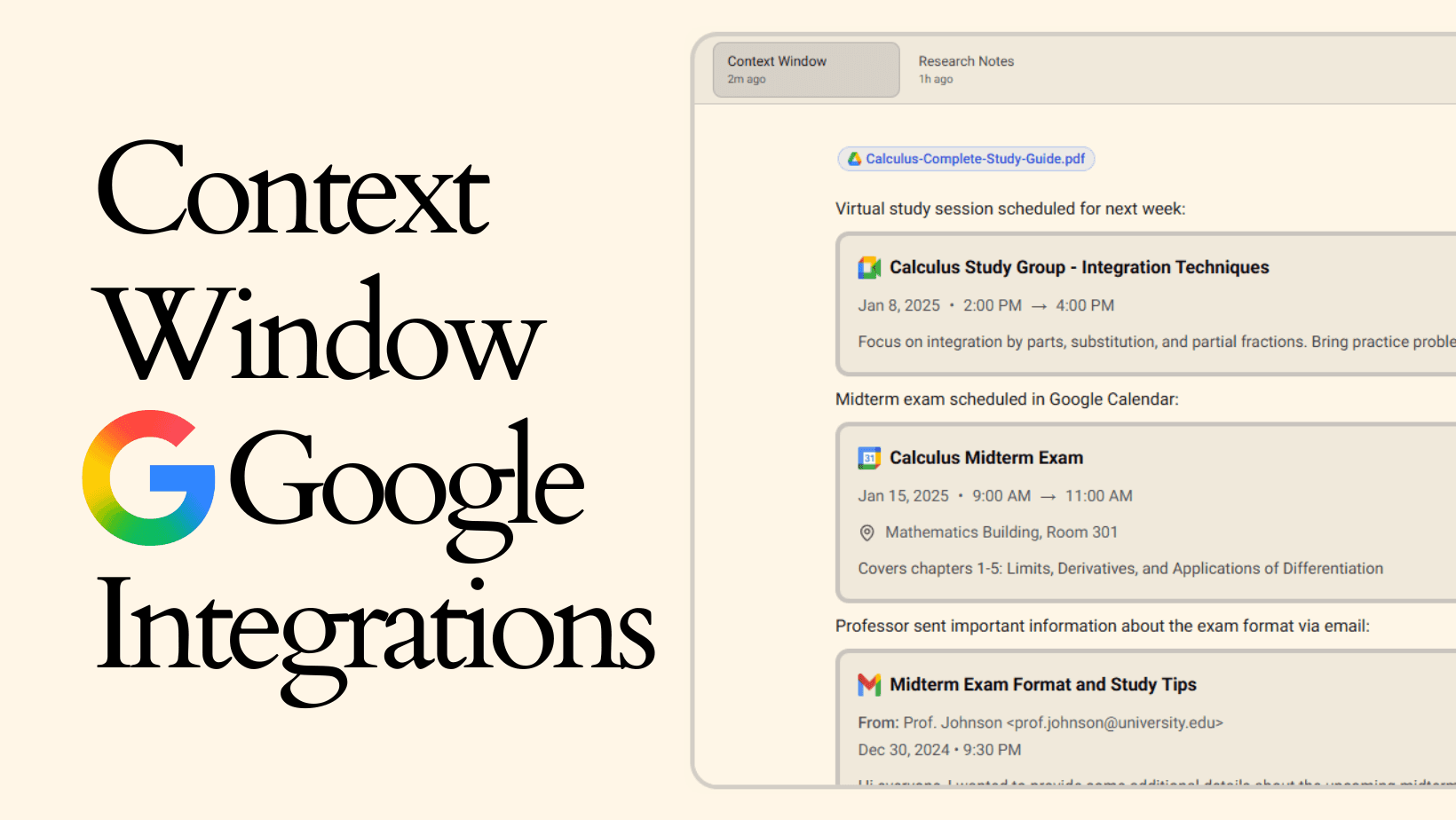
Context Windows Google Integrations
"Context Windows Google Integrations" Watch on YouTube →
"Context Windows Google Integrations" Watch on X →
Context Windows: Google Integrations
Enhanced Context Building
Context Windows now integrate directly with Google services. Instead of downloading files from Drive to upload them, or copying meeting details manually, or pasting email content you can import everything directly.
This update adds four Google integrations: Drive for files, Meet for upcoming meetings, Calendar for events, and Gmail for emails. Each becomes a native element type within your Context Windows.
Google Drive Integration
Import files from your Google Drive directly into Context Windows without downloading them first.
When building context, click the Drive import option. Browse your Google Drive. Select the files you need. They import directly into your Context Window as file elements.
This works for any file type stored in Drive documents, spreadsheets, presentations, PDFs, images. The files become part of your context just like locally uploaded files.
For projects where most of your files already live in Drive, this eliminates the download-then-upload workflow. Select what you need from Drive and it's immediately part of your context.
Google Meet Integration
Add your upcoming meetings as elements in your Context Windows.
When you connect Google Meet, you can browse your scheduled meetings and select which ones to include. Each meeting appears as a structured element showing the title, time, attendees, and meeting link.
This is useful when building project contexts that need to reference planned discussions. Include next week's client review meeting, the upcoming design sync, or the quarterly planning session. The meeting details become part of your context documentation.
As meetings update or get rescheduled, the elements reflect current information. Your context stays accurate with your actual calendar.
Google Calendar Integration
Import calendar events directly into your Context Windows as structured elements.
Browse your calendar and select relevant events to include. Each event appears showing its title, date, time, location, and description.
For project contexts, this means including important deadlines, milestones, or scheduled deliverables as actual calendar elements rather than manually typing dates. For research contexts, include conference dates, submission deadlines, or presentation schedules.
Events in your Context Window stay synchronized with your calendar. Changes to event details update automatically in your context.
Gmail Integration
Add emails from Gmail as elements in your Context Windows.
Browse your inbox or specific folders and select emails to include. Each email appears as a structured element showing sender, subject, date, and full content.
This is particularly useful for project contexts where specific email threads provide important background. Include the original client requirements email, design feedback from stakeholders, or technical discussions with team members.
Rather than copying and pasting email content or losing track of which email thread contained what information, relevant emails become permanent, organized elements in your context.
Integrations
Each Google service appears as an import option when building Context Windows.
Connect your Google account once through Aquin's settings. After connection, you can browse and import from any of the four services when editing a Context Window.
Building Richer Context
These integrations enable building more complete project and research contexts.
A project Context Window might include: Your written project overview, files from Drive containing requirements and specs, the upcoming client meetings from Google Meet, key milestone dates from Calendar, and important email threads from Gmail discussing project decisions.
A research Context Window could contain: Your literature review notes, papers imported from Drive, scheduled conference dates from Calendar, upcoming advisor meetings from Meet, and email discussions with collaborators from Gmail.
The point is having all relevant information regardless of where it originates organized together in one context document.
Privacy
Google integrations work through official OAuth connections. Your credentials never go through Aquin authentication happens directly with Google.
Imported content follows the same privacy rules as other Context Window content. Using local AI models? Everything processes on your device. Using cloud models? The Feed AI sidebar controls what gets transmitted.
Use Cases
Different workflows benefit from different integration combinations.
Client Projects: Import project files from Drive, include scheduled client meetings from Meet, add deadline dates from Calendar, reference key email communications from Gmail.
Research Work: Import papers and datasets from Drive, include conference dates from Calendar, add advisor meeting schedules from Meet, reference email discussions from Gmail.
Team Collaboration: Share Context Windows with imported Drive documents everyone can access, upcoming team meetings from Meet, project timeline events from Calendar, and relevant email threads from Gmail.
Learning Projects: Import course materials from Drive, include study session events from Calendar, add office hour meetings from Meet, reference instructor emails from Gmail.
Benefits
Everything imports directly, maintains its structure, and stays updated if source information changes.
For users whose work lives primarily in Google services, Context Windows now connect directly to that ecosystem.
Context Windows now integrate directly with Google Drive, Meet, Calendar, and Gmail making it easier to build comprehensive context from your existing Google workspace.